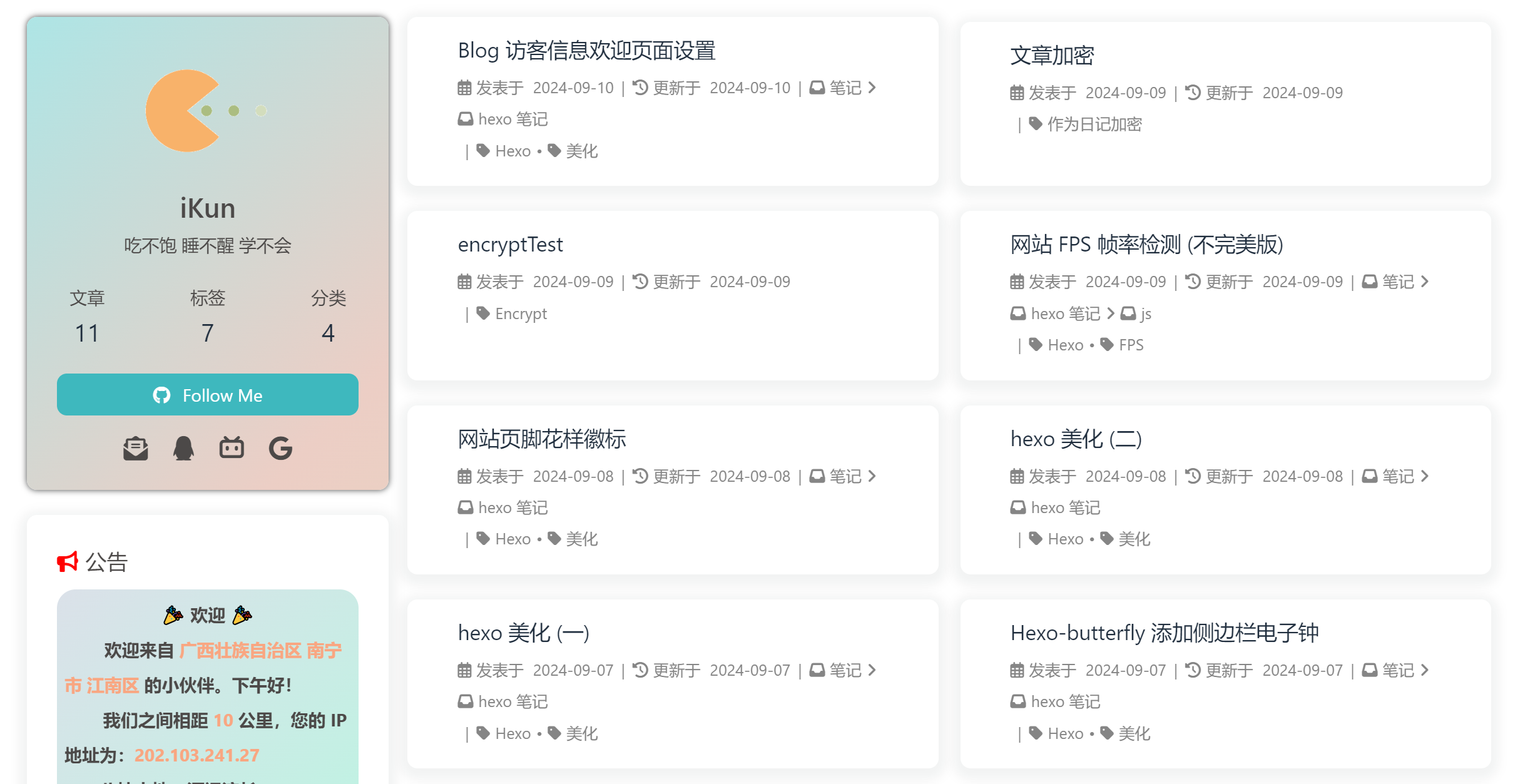
教程出处

博客魔改

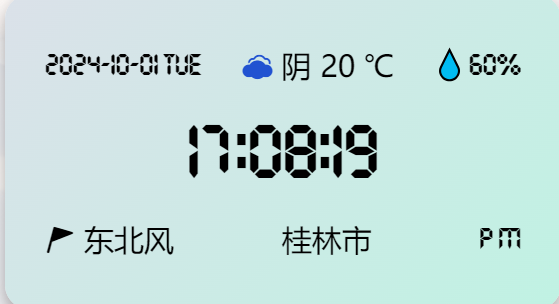
页脚计时器及徽标

效果:

  1. G:\Blog打开Git Bash Here,输入如下命令:
1
npm install hexo-butterfly-footer-beautify --save
  1. 打开G:\Blog\_config.butterfly.yml,添加以下代码:
1
2
3
4
5
6
7
8
9
10
11
12
13
14
15
16
17
18
19
20
21
22
23
24
25
26
27
28
29
30
31
32
33
34
35
36
37
38
39
40
41
42
43
44
45
46
47
48
# footer_beautify
# 页脚计时器:[Native JS Timer](https://akilar.top/posts/b941af/)
# 页脚徽标:[Add Github Badge](https://akilar.top/posts/e87ad7f8/)
footer_beautify:
enable:
timer: true # 计时器开关
bdage: true # 徽标开关
priority: 5 #过滤器优先权
enable_page: all # 应用页面
exclude: #屏蔽页面
# - /posts/
# - /about/
layout: # 挂载容器类型
type: id
name: footer-wrap
index: 0
# 计时器部分配置项(看你喜欢哪个,最好下载下来放到自己的项目中不然会增加我网站的负载)
# 这是我的
runtime_js: /js/runtime.js
runtime_css: /css/runtime.css
# 这是店长的
#runtime_js: https://npm.elemecdn.com/hexo-butterfly-footer-beautify@1.0.0/lib/runtime.js
#runtime_css: https://npm.elemecdn.com/hexo-butterfly-footer-beautify@1.0.0/lib/runtime.css
# 徽标部分配置项
swiperpara: 0 #若非0,则开启轮播功能,每行徽标个数
bdageitem:
- link: https://hexo.io/ #徽标指向网站链接
shields: https://img.shields.io/badge/Frame-Hexo-blue?style=flat&logo=hexo #徽标API
message: 博客框架为Hexo_v6.2.0 #徽标提示语
- link: https://butterfly.js.org/
shields: https://img.shields.io/badge/Theme-Butterfly-6513df?style=flat&logo=bitdefender
message: 主题版本Butterfly_v4.3.1
- link: https://vercel.com/
shields: https://img.shields.io/badge/Hosted-Vercel-brightgreen?style=flat&logo=Vercel
message: 本站采用多线部署,主线路托管于Vercel
- link: https://dashboard.4everland.org/
# https://img.shields.io/badge/Hosted-4EVERLAND-3FE2C1?style=flat&logo=IPFS
shields: https://img.shields.io/badge/Hosted-4EVERLAND-22DDDD?style=flat&logo=IPFS
message: 本站采用多线部署,备用线路托管于4EVERLAND
- link: https://github.com/
shields: https://img.shields.io/badge/Source-Github-d021d6?style=flat&logo=GitHub
message: 本站项目由Github托管
- link: http://creativecommons.org/licenses/by-nc-sa/4.0/
shields: https://img.shields.io/badge/Copyright-BY--NC--SA%204.0-d42328?style=flat&logo=Claris
message: 本站采用知识共享署名-非商业性使用-相同方式共享4.0国际许可协议进行许可
swiper_css: https://npm.elemecdn.com/hexo-butterfly-swiper/lib/swiper.min.css
swiper_js: https://npm.elemecdn.com/hexo-butterfly-swiper/lib/swiper.min.js
swiperbdage_init_js: https://npm.elemecdn.com/hexo-butterfly-footer-beautify/lib/swiperbdage_init.min.js
  1. 设置页脚显示的文字内容和计数,在G:\Blog\source\js下新建runtime.js,写入如下内容,可自行根据GPT自定制
1
var now=new Date;function createtime(){now.setTime(now.getTime()+1e3);var e=new Date("08/01/2022 00:00:00"),t=Math.trunc(234e8+(now-e)/1e3*17),a=(t/1496e5).toFixed(6),o=new Date("08/09/2022 00:00:00"),n=(now-o)/1e3/60/60/24,r=Math.floor(n),i=(now-o)/1e3/60/60-24*r,s=Math.floor(i);1==String(s).length&&(s="0"+s);var d=(now-o)/1e3/60-1440*r-60*s,l=Math.floor(d);1==String(l).length&&(l="0"+l);var g=(now-o)/1e3-86400*r-3600*s-60*l,b=Math.round(g);1==String(b).length&&(b="0"+b);let c="";c=s<18&&s>=9?`<img class='boardsign' src='https://sourcebucket.s3.ladydaily.com/badge/F小屋-科研摸鱼中.svg' title='什么时候能够实现财富自由呀~'><br> <div style="font-size:13px;font-weight:bold">本站居然运行了 ${r}${s} 小时 ${l}${b} 秒 <i id="heartbeat" class='fas fa-heartbeat'></i> <br> 旅行者 1 号当前距离地球 ${t} 千米,约为 ${a} 个天文单位 🚀</div>`:`<img class='boardsign' src='https://sourcebucket.s3.ladydaily.com/badge/F小屋-下班休息啦.svg' title='下班了就该开开心心地玩耍~'><br> <div style="font-size:13px;font-weight:bold">本站居然运行了 ${r}${s} 小时 ${l}${b} 秒 <i id="heartbeat" class='fas fa-heartbeat'></i> <br> 旅行者 1 号当前距离地球 ${t} 千米,约为 ${a} 个天文单位 🚀</div>`,document.getElementById("workboard")&&(document.getElementById("workboard").innerHTML=c)}setInterval((()=>{createtime()}),1e3);

文章双侧栏

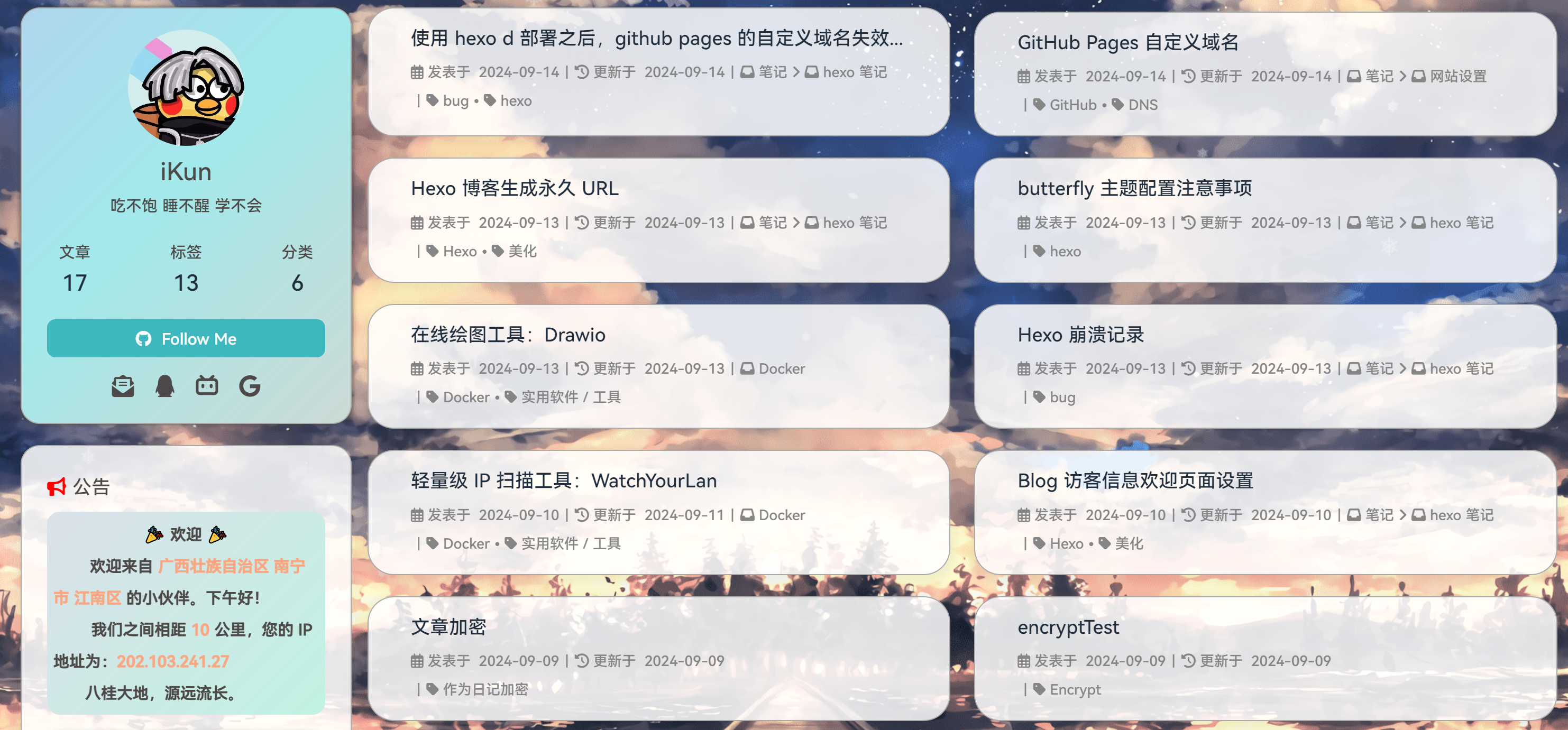
效果:本来blog显示文章是单列的,改为双侧栏之后效果如下

image-20240910165942329

  1. 下载插件

    1
    npm i hexo-butterfly-article-double-row --save
  2. 在网站配置文件G:\Blog\_config.yml(注:不是主题配置文件!!)下添加如下配置:

1
2
3
# 文章双栏布局
butterfly_article_double_row:
enable: true
  1. hexo三连

补充

这时候插件有个bug,就是最后一页文章数目为奇数的时候,会出现翻页按钮出现在最右边,看着很不顺眼,直接把他设为居中,在G:\hexo\source\css\custom.css中添加如下代码:

1
2
3
4
5
/* 翻页按钮居中 */
#pagination {
width: 100%;
margin: auto;
}

参考教程:butterfly 主题文章双栏布局插件

雪花飘落特效

前言:以前在WordPress也用js实现过雪花飘落的特效,但是对服务器性能要求蛮高的,容易出现卡顿,现在这个js好一点,要求不那么高,毕竟是静态博客

效果:在网页飘雪,动态,但是没有以前WordPress那个脚本那么好,那个是会跟着屏幕从最上面掉落在最下面,现在这个只能在屏幕下

  1. 新建js文件G:\Blog\source\js\snow.js,写入如下内容
1
2
3
4
5
6
7
8
9
10
11
12
13
14
15
16
17
18
19
20
21
22
23
24
25
26
27
28
29
30
31
32
33
34
35
36
37
38
39
40
41
42
43
44
45
46
47
48
49
50
51
52
53
54
55
56
57
58
59
60
61
62
63
64
65
66
67
68
69
70
71
72
73
74
75
76
77
78
79
80
81
82
83
84
85
86
87
88
89
90
91
92
93
94
95
96
97
98
99
100
101
102
103
104
105
106
107
108
if (
navigator.userAgent.match(
/(phone|pad|pod|iPhone|iPod|ios|iPad|Android|Mobile|BlackBerry|IEMobile|MQQBrowser|JUC|Fennec|wOSBrowser|BrowserNG|WebOS|Symbian|Windows Phone)/i
)
) {
// 移动端不显示
} else {
// document.write('<canvas id="snow" style="position:fixed;top:0;left:0;width:100%;height:100%;z-index:-2;pointer-events:none"></canvas>');

window &&
(() => {
let e = {
flakeCount: 30, // 雪花数目
minDist: 150, // 最小距离
color: "240, 235, 235", // 雪花颜色
size: 1.5, // 雪花大小
speed: 0.4, // 雪花速度
opacity: 0.8, // 雪花透明度
stepsize: 0.3, // 步距
};
// ❄,❅,❆,❇,❈,❊,✳,✴,✻
// const snowflakes = ["❄,❅,❆,❇,❈,❊,✳,✴,✻"];
const t =
window.requestAnimationFrame ||
window.mozRequestAnimationFrame ||
window.webkitRequestAnimationFrame ||
window.msRequestAnimationFrame ||
function (e) {
window.setTimeout(e, 1e3 / 60);
};
window.requestAnimationFrame = t;
const i = document.getElementById("snow"),
n = i.getContext("2d"),
o = e.flakeCount;
let a = -100,
d = -100,
s = [];
(i.width = window.innerWidth), (i.height = window.innerHeight);
const h = () => {
n.clearRect(0, 0, i.width, i.height);
const r = e.minDist;
for (let t = 0; t < o; t++) {
let o = s[t];
const h = a,
w = d,
m = o.x,
c = o.y,
p = Math.sqrt((h - m) * (h - m) + (w - c) * (w - c));
if (p < r) {
const e = (h - m) / p,
t = (w - c) / p,
i = r / (p * p) / 2;
(o.velX -= i * e), (o.velY -= i * t);
} else
(o.velX *= 0.98),
o.velY < o.speed &&
o.speed - o.velY > 0.01 &&
(o.velY += 0.01 * (o.speed - o.velY)),
(o.velX += Math.cos((o.step += 0.05)) * o.stepSize);
(n.fillStyle = "rgba(" + e.color + ", " + o.opacity + ")"),
(o.y += o.velY),
(o.x += o.velX),
(o.y >= i.height || o.y <= 0) && l(o),
(o.x >= i.width || o.x <= 0) && l(o),
(n.font = o.size * 5 + "px Arial"); // 根据雪花大小设置字体大小
n.fillText("❅", o.x, o.y); // 使用雪花符号替代圆形
}
t(h);
},
l = (e) => {
(e.x = Math.floor(Math.random() * i.width)),
(e.y = 0),
(e.size = 3 * Math.random() + 2),
(e.speed = 1 * Math.random() + 0.5),
(e.velY = e.speed),
(e.velX = 0),
(e.opacity = 0.5 * Math.random() + 0.3);
};
document.addEventListener("mousemove", (e) => {
(a = e.clientX), (d = e.clientY);
}),
window.addEventListener("resize", () => {
(i.width = window.innerWidth), (i.height = window.innerHeight);
}),
(() => {
for (let t = 0; t < o; t++) {
const t = Math.floor(Math.random() * i.width),
n = Math.floor(Math.random() * i.height),
o = 3 * Math.random() + e.size,
a = 1 * Math.random() + e.speed,
d = 0.5 * Math.random() + e.opacity;
s.push({
speed: a,
velX: 0,
velY: a,
x: t,
y: n,
size: o,
stepSize: (Math.random() / 30) * e.stepsize,
step: 0,
angle: 180,
opacity: d,
});
}
h();
})();
})();
}
  1. G:\Blog\source\css\custom.css添加如下css代码
1
2
3
4
5
6
7
8
9
10
11
12
13
14
15
/* 雪花特效 */
[data-theme="light"] #snow {
display: block;
position: fixed;
left: 0;
top: 0;
width: 100%;
height: 100%;
pointer-events: none;
z-index: -2;
}
/* 雪花黑夜模式不显示 */
[data-theme="dark"] #snow {
display: none;
}
  1. 引入画布元素,在G:\Blog\_config.butterfly.yml中进行如下配置
1
2
3
4
inject: 
bottom:
+ - <canvas id="snow"></canvas> # 雪花画布
+ - <script async src="/js/snow.js"></script> # 雪花特效
  1. hexo三连即可看到效果,只在白天模式显示,夜晚模式有流星特效和星光特效了

侧边栏新年倒计时(Leonus)

效果:添加一个侧边新年倒计时卡片

image-20240910230039721

  1. 新建文件G:\Blog\source\_data\widget.yml,写入如下内容,具体含义可以看butterfly官方文档
1
2
3
4
5
6
7
8
9
10
11
12
13
# top: 创建的 widget 会出现在非 sticky 区域(即所有页面都会显示)
# bottom: 创建的 widget 会出现在 sticky 区域(除了文章页都会显示)
top:
- class_name:
id_name: newYear
name:
icon:
order: 1
html: '<div id="newYear-main"><div class="mask"></div>
<p class="title"></p>
<div class="newYear-time"></div>
<p class="today" style="text-align: right;"></p>
</div>'
  1. 添加如下css代码
1
2
3
4
5
6
7
8
9
10
11
12
13
14
15
16
17
18
19
20
21
22
23
24
25
26
27
28
29
30
31
32
33
34
35
36
37
38
39
40
41
42
43
44
45
46
47
48
49
50
51
52
53
54
55
56
57
58
59
60
61
62
63
64
65
66
67
68
69
70

/* 新年侧边栏 */
#newYear {
color: white;
padding: 0 !important;
}

#newYear p,
#newYear h3 {
font-weight: normal;
color: inherit;
margin: 0;
}

#newYear .item-headline {
display: none;
}

#newYear-main {
min-height: 160px;
padding: 1rem;
position: relative;
border-radius: 12px;
background-image: url(https://tuchuang.voooe.cn/images/2023/01/02/tunian.webp);
background-size: cover;
background-position: center;
}

#newYear-main * {
position: relative;
line-height: 1.3;
}

#newYear-main .newYear-time {
font-weight: bold;
text-align: center;
}

#newYear-main .time,
#newYear-main .happyNewYear {
font-size: 3.5rem;
margin: 1rem 0;
display: block;
}
/* 中间的天数显示 */
#newYear-main .day {
font-size: 4.5rem;
color: rgb(243, 232, 194);
}
#newYear-main .day .unit {
font-size: 1rem;
}
#newYear-main .mask {
position: absolute;
left: 0;
top: 0;
height: 100%;
width: 100%;
background-color: rgba(0, 0, 0, .1);
}
/* 左上角的倒计时标题 */
#newYear .title {
font-size: 1rem;
color: rgb(243, 232, 194);
}
/* 右下角的日期显示 */
#newYear .today {
font-size: 1rem;
color: rgb(243, 232, 194);
}
  1. 新建js文件G:\Blog\source\js\newYear.js,写入如下内容
1
2
3
4
5
6
7
8
9
10
11
12
13
14
15
16
17
18
19
20
21
22
23
24
25
26
27
28
29
30
31
32
33
34
35
36
37
38
39
40
41
42
43
44
45
46
47
48
49
50
51
52
53
54
55
56
57
58
59
60
61
62
63
64
65
66
67
68
69
70
71
72
73
74
75
76
77
78
79
80
81
82
83
84
85
86
87
88
89
90
91
92
93
94
95
96
let newYearTimer = null;
var newYear = () => {
clearTimeout(newYearTimer);
if (!document.querySelector("#newYear")) return;
// 新年时间戳 and 星期对象
let newYear = new Date("2025-01-29 00:00:00").getTime() / 1000,
week = {
0: "周日",
1: "周一",
2: "周二",
3: "周三",
4: "周四",
5: "周五",
6: "周六",
};

time();

// 补零函数
function nol(h) {
return h > 9 ? h : "0" + h;
}

function time() {
// 现在 时间对象
let now = new Date();

// 右下角 今天
document.querySelector("#newYear .today").innerHTML =
now.getFullYear() +
"-" +
(now.getMonth() + 1) +
"-" +
now.getDate() +
" " +
week[now.getDay()];

// 现在与新年相差秒数
let second = newYear - Math.round(now.getTime() / 1000);

// 小于0则表示已经过年
if (second < 0) {
document.querySelector("#newYear .title").innerHTML = "Happy New Year!";
document.querySelector("#newYear .newYear-time").innerHTML =
'<span class="happyNewYear">新年快乐</p>';
} else {
// 大于0则还未过年
document.querySelector("#newYear .title").innerHTML = "距离2025年春节还有:";

// 大于一天则直接渲染天数
if (second > 86400) {
document.querySelector(
"#newYear .newYear-time"
).innerHTML = `<span class="day">${Math.ceil(
second / 86400
)}<span class="unit">天</span></span>`;
} else {
// 小于一天则使用时分秒计时。
let h = nol(parseInt(second / 3600));
second %= 3600;
let m = nol(parseInt(second / 60));
second %= 60;
let s = nol(second);
document.querySelector(
"#newYear .newYear-time"
).innerHTML = `<span class="time">${h}:${m}:${s}</span></span>`;
// 计时
newYearTimer = setTimeout(time, 1000);
}
}
}

// 元宝飘落
jQuery(document).ready(function ($) {
$("#newYear").wpSuperSnow({
flakes: [
"https://tuchuang.voooe.cn/images/2023/01/02/yb1.webp",
"https://tuchuang.voooe.cn/images/2023/01/02/yb2.webp",
"https://tuchuang.voooe.cn/images/2023/01/02/yb3.webp",
],
totalFlakes: "100",
zIndex: "999999",
maxSize: "30",
maxDuration: "20",
useFlakeTrans: false,
});
});
};


// 若没有开启Pjax这里直接是newYear()即可
newYear()
// 开了Pjax的用以下两句
// document.addEventListener("pjax:complete", newYear);
// document.addEventListener("DOMContentLoaded", newYear);

  1. 下载jquery-3.6.3.min.js到本地并放入G:\Blog\source\js\jquery-3.6.3.min.js因为之前配置访客欢迎信息时引入了jquery-3.6.1.min.js,但是现在用3.6.3更高版本替代了,使用在配置文件中把之前引入的3.6.1注销掉,直接使用3.6.3版本的不能注释掉jquery-3.6.1.min.js!!!,可以不使用jquery-3.6.3.min.js,但是一定要有jquery-3.6.1.min.js,否则访客欢迎页面就会加载不出欢迎信息。
  2. G:\Blog\_config.butterfly.yml引入依赖文件
1
2
3
4
5
6
inject:
bottom:
+ - <script src="js/jquery-3.6.3.min.js"></script> # jQuery3.6.3
- <script src="/js/jquery-3.6.1.min.js"></script>~~
+ - <script async data-pjax src="https://cdn.wpon.cn/2022-sucai/Gold-ingot.js"></script> # 新年元宝
+ - <script async data-pjax src="/js/newYear.js"></script> # 新年倒计时
  1. hexo三连重启项目

参考教程 博客新年倒计时卡片

字体更换

效果:替换网站的默认字体,让中文和代码使用不同的字体

中文字体:鸿蒙字体(粗体)

代码字体:JetBrainsMono-Regular

其他不错的字体

OPPOSans字体 常规款

OPPOSans字体 粗体款

华康金刚

思源黑体

说明:支持多重字体格式(ttf、otf、woff、woff2、eot…),但是最推荐用.woff2的,因为它能提供更高的压缩率,比woff更小,加载速度更快

  1. G:\Blog\source\css\custom.css添加如下代码
1
2
3
4
5
6
7
8
9
10
11
12
13
14
15
16
17
18
19
20
21
22
/* 文章字体 */
@font-face {
/* 为载入的字体取名字(随意) */
font-family: 'myFont';
/* 字体文件地址(相对或者绝对路径都可以) */
src: url(/font/hm-m.woff2);
/* 定义加粗样式(加粗多少) */
font-weight: normal;
/* 定义字体样式(斜体/非斜体) */
font-style: normal;
/* 定义显示样式 */
font-display: block;
}

/* 代码字体 */
@font-face {
font-family: 'CodeFont';
src: url('/font/JetBrainsMono-Regular.woff2');
font-weight: normal;
font-style: normal;
font-display: block;
}
  1. 新建文件夹G:\Blog\source\font,将下载的字体放入文件夹下,我使用的中文字体是hm-m.woff2,代码字体为JetBrainsMono-Regular.woff2

  2. G:\Blog\_config.butterfly.yml中配置font

1
2
3
4
5
6
7
8
9
10
11
12
font:
global-font-size: '15px'
code-font-size: '14px'
font-family: myFont
code-font-family: CodeFont

# Font settings for the site title and site subtitle
# 左上角網站名字 主頁居中網站名字
blog_title_font:
font_link:
font-family: myFont

  1. hexo三连

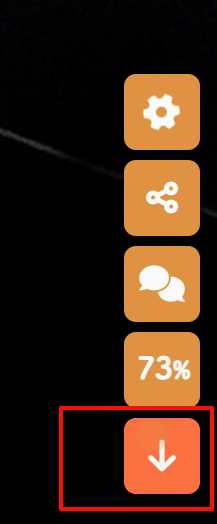
直达底部按钮

效果:在页面右下角添加一个直达底部的按钮

image-20240912125648455

  1. 打开G:\Blog\themes\butterfly\layout\includes\rightside.pug,添加如下内容
1
2
3
4
5
6
7
    button#go-up(type="button" title=_p("rightside.back_to_top"))
span.scroll-percent
i.fas.fa-arrow-up

//- "直达底部"按钮
+ button#go-down(type="button" title="直达底部" onclick="btf.scrollToDest(document.body.scrollHeight, 500)")
+ i.fas.fa-arrow-down

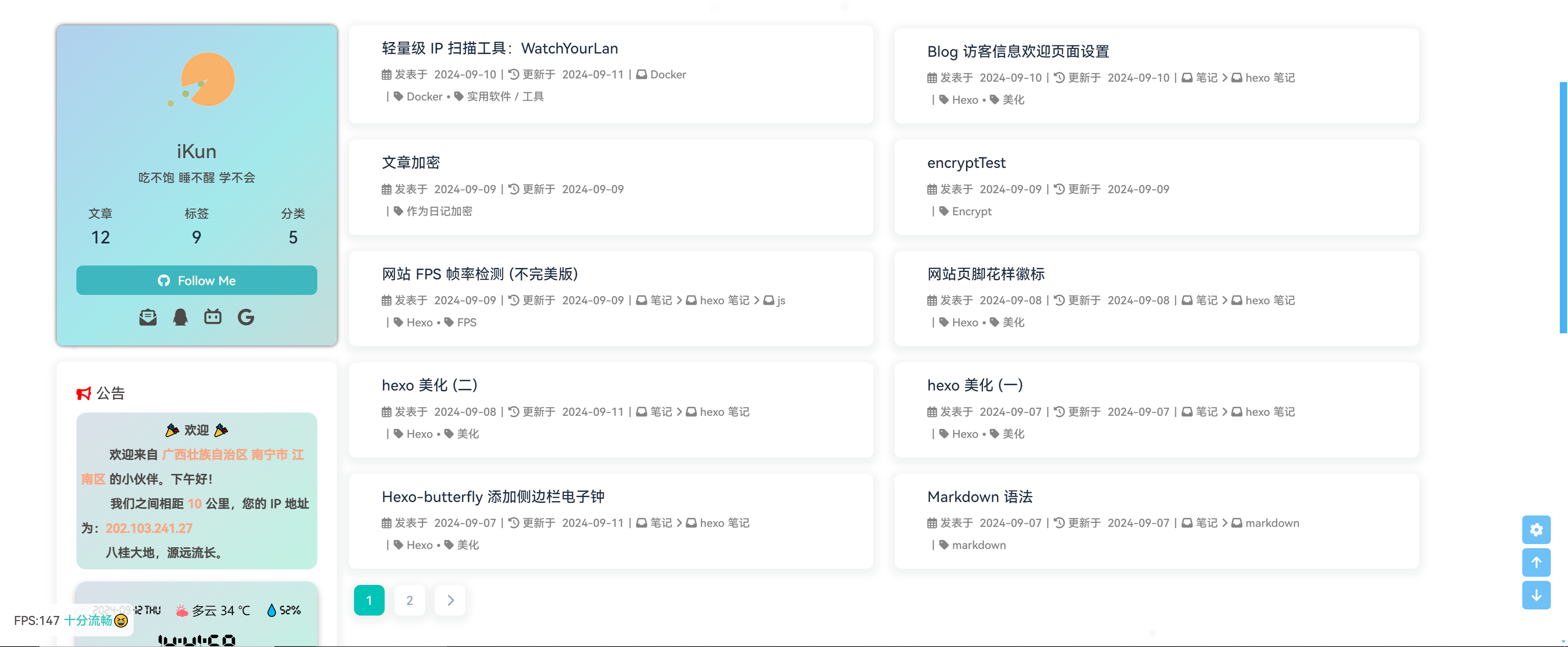
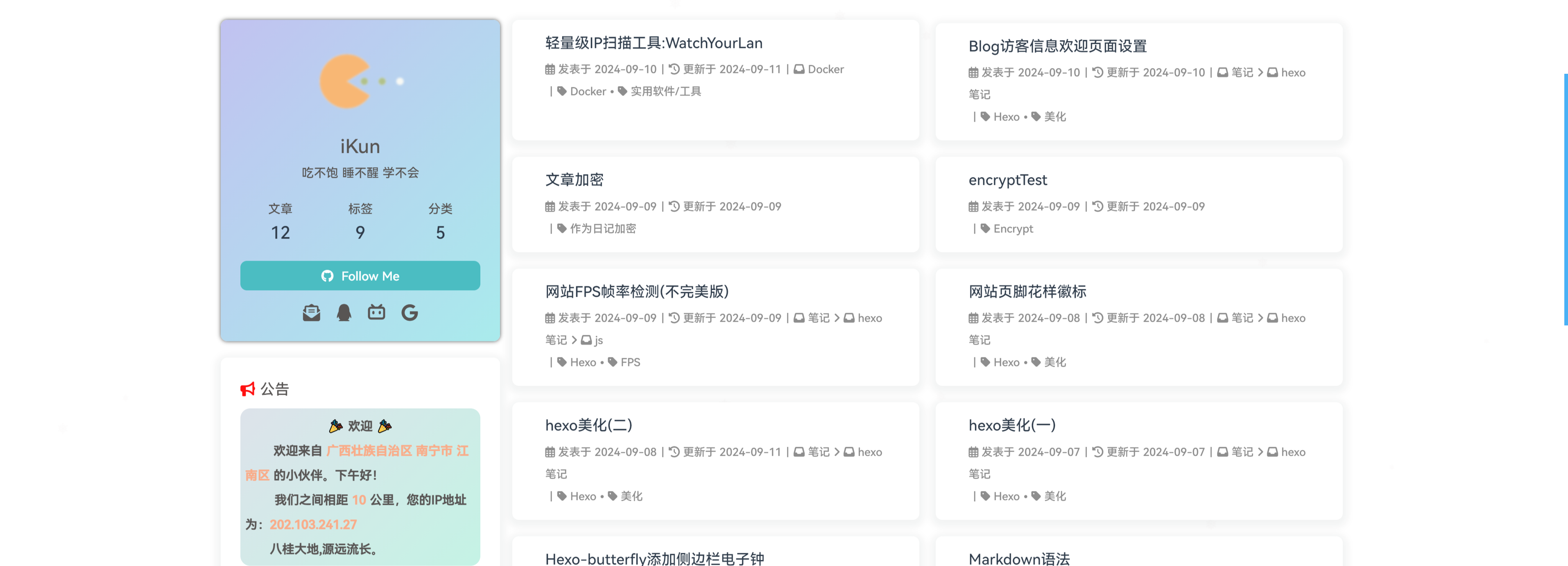
宽屏适配

效果:改变博客全局宽度和侧边栏宽度

夸张效果
image-20240912144212577

当前效果(距离屏幕左右两边宽度明显变化)

image-20240912144302243

  1. custom.css中添加如下代码

1
2
3
4
5
6
7
8
9
10
11
12
13
14
15
16
17
18
/* 全局宽度 */
.layout {
max-width: 1550px;
}

/* 侧边卡片栏宽度 */
.aside-content {
max-width: 328px;
min-width: 300px;
}

/* 平板尺寸自适应(不启用侧边栏宽度限制) */
@media screen and (max-width: 900px) {
.aside-content {
max-width: none !important;
padding: 0 5px 0 5px;
}
}
  1. 重启项目,hexo三连

给卡片添加动画

效果

给给类卡片添加出场动画,原来是打开页面就存在,现在有一个入场方式

参考

教程

动画网站

这个网站有很多动画,可以选自己喜欢的 动画网站

操作步骤

  1. 安装插件,
1
npm install hexo-butterfly-wowjs --save
  1. G:\Blog\_config.butterfly.yml配置文件添加如下内容
1
2
3
4
5
6
7
8
9
10
11
12
13
14
15
16
17
18
19
20
21
22
23
24
25
26
27
28
29
30
31
32
33
34
35
36
37
38
39
40
41
42
43
44
45
46
47
48
49
50
51
52
53
54
55
56
57
58
59
60
61
62
63

# 卡片动画效果
wowjs:
enable: true #控制动画开关。true是打开,false是关闭
priority: 8 #过滤器优先级
mobile: false #移动端是否启用,默认移动端禁用
animateitem:
# 文章
- class: recent-post-item #必填项,需要添加动画的元素的class
style: animate__backInRight #必填项,需要添加的动画
duration: 1s #选填项,动画持续时间,单位可以是ms也可以是s。例如3s,700ms。
delay: 600ms #选填项,动画开始的延迟时间,单位可以是ms也可以是s。例如3s,700ms。
offset: 100 #选填项,开始动画的距离(相对浏览器底部)
iteration: 1
# 侧边栏
- class: card-widget
style: animate__backInLeft
duration: 1s
delay: 600ms
offset: 100
iteration: 1
# 网站底部
- class: footer-wrap
style: animate__backInUp
duration: 1s
delay: 600ms
offset: 100
iteration: 1
# 标题栏
- class: show
style: animate__fadeInDown
duration: 1s
delay: 600ms
offset: 100
iteration: 1
# 个人卡片
- class: is-center
style: animate__backInLeft
duration: 1s
delay: 600ms
offset: 100
iteration: 1
- class: card-info-data
style: animate__backInLeft
duration: 1s
delay: 600ms
offset: 100
iteration: 1
- class: card-info-social-icons
style: animate__backInLeft
duration: 1s
delay: 600ms
offset: 100
iteration: 1
- class: card-info-btn
style: animate__backInLeft
duration: 1s
delay: 600ms
offset: 100
iteration: 1
animate_css: https://npm.elemecdn.com/hexo-butterfly-wowjs/lib/animate.min.css
wow_js: https://npm.elemecdn.com/hexo-butterfly-wowjs/lib/wow.min.js
wow_init_js: https://npm.elemecdn.com/hexo-butterfly-wowjs/lib/wow_init.js
  1. 打开G:\Blog\themes\butterfly\layout\includes\widget\card_author.pug文件夹,给Follow Me添加类名

    因为插件只能根据类名class添加动画,不支持根据id添加动画,所以要给一些只有id没有class的容器添加class,在pug中可以通过这种方式为同一个元素同时指定 idclass#footer-wrap 代表 id="footer-wrap".footer-wrap 代表 class="footer-wrap"

1
2
3
4
5

if theme.aside.card_author.button.enable
+ a#card-info-btn.card-info-btn(href=theme.aside.card_author.button.link)
i(class=theme.aside.card_author.button.icon)
span=theme.aside.card_author.button.text
  1. 打开G:\Blog\themes\butterfly\layout\includes\footer.pug,给id为footer.pug的元素添加类名(第二行)
1
2
3
4
5
6
7
8
9
10
11
12
13
14
15
16
17
18
19
//- #footer-wrap
#footer-wrap.footer-wrap
if theme.footer.owner.enable
- var now = new Date()
- var nowYear = now.getFullYear()
if theme.footer.owner.since && theme.footer.owner.since != nowYear
.copyright!= `&copy;${theme.footer.owner.since} - ${nowYear} By ${config.author}`
else
.copyright!= `&copy;${nowYear} By ${config.author}`
if theme.footer.copyright
.framework-info
span= _p('footer.framework') + ' '
a(href='https://hexo.io')= 'Hexo'
span.footer-separator |
span= _p('footer.theme') + ' '
a(href='https://github.com/jerryc127/hexo-theme-butterfly')= 'Butterfly'
if theme.footer.custom_text
.footer_custom_text!=`${theme.footer.custom_text}`

参数释义

参数 备选值 释义
enable true/false 【必选】控制开关
priority number 【可选】过滤器优先级,数值越小,执行越早,默认为10,选填
mobile true/false 控制移动端是否启用,默认移动端禁用
animateitem.class class 【可选】添加动画类名,只支持给class添加
animateitem.style text 【可选】动画样式,具体类型参考animate.css
animateitem.duration time,单位为s或ms 【可选】动画持续时间,单位可以是ms也可以是s。例如3s,700ms。
animateitem.delay time,单位为s或ms 【可选】动画开始的延迟时间,单位可以是ms也可以是s。例如3s,700ms。
animateitem.offset number,单位为px 【可选】开始动画的距离(相对浏览器底部)。
animateitem.iteration number,单位为s或ms 【可选】动画重复的次数
animate_css URL 【可选】animate.css的CDN链接,默认为https://npm.elemecdn.com/hexo-butterfly-wowjs/lib/animate.min.css
wow_js URL 【可选】wow.min.js的CDN链接,默认为https://npm.elemecdn.com/hexo-butterfly-wowjs/lib/wow.min.js
wow_init_js URL 【可选】wow_init.js的CDN链接,默认为https://npm.elemecdn.com/hexo-butterfly-wowjs/lib/wow_init.js

hexo博客如何迁移到新电脑

参考教程 Hexo博客如何迁移到新电脑

+++

Vue+Element样式弹窗(不要下载引用的文件到本地!)

效果:image-20240912170352025

  1. G:\Blog\_config.butterfly.yml引入VueElement相关依赖,未下载js文件到本地版
1
2
3
4
5
6
7
# 未下载js文件到本地
inject:
head:
+ - <link rel="stylesheet" href="https://cdn1.tianli0.top/npm/element-ui@2.15.6/packages/theme-chalk/lib/index.css"> # 引入组件库(f12)
bottom:
+ - <script async src="https://cdn1.tianli0.top/npm/vue@2.6.14/dist/vue.min.js"></script> # 引入VUE(f12)
+ - <script async src="https://cdn1.tianli0.top/npm/element-ui@2.15.6/lib/index.js"></script> # 引入ElementUI(f12)

已下载文件到本地,并将css文件和js文件分别放入/css/js文件夹中,将原来的index.css重命名为vueindex.css,将index.js重命名为vueindex.js不要将文件下载到本地然后使用相对路径的方法引用,否则控制台会Uncaught ReferenceError: Vue is not defined at HTMLDocument.<anonymous> (copyPrompt.js:2:3)的错误

  1. 新建js文件G:\Blog\source\js\copy.js,写入如下内容,仅在复制和打开F12时弹出提醒

    在想要弹出弹窗的js代码中加入 new Vue({})即可触发弹窗:

1
2
3
4
5
6
7
8
9
10
11
12
13
14
15
16
17
18
19
20
21
22
23
24
25
26
27
28
29
30
31
32
33
document.addEventListener("copy", function () {
new Vue({
data: function () {
this.$notify({
title: "复制成功",
message: "转载请遵守CC协议",
position: "top-left",
offset: 50,
showClose: true,
type: "success",
duration: 4000,
});
},
});
});

document.addEventListener("keydown", function (event) {
if (event.key === "F12") {
new Vue({
data: function () {
this.$notify({
title: "逮住😜",
message: "小兄弟,扒源请遵循GPL协议!",
position: "top-left",
offset: 50,
showClose: true,
type: "warning",
duration: 4000,
});
},
});
}
});

参数释义

参数 释义
notify 弹窗类型,可以替换为message(信息提示)和confirm(二次确认提示)
title 弹窗标题,可以改为自定义标题
message 弹窗信息,可以改为自定义内容
position 弹出位置,bottom、top和left、right两两组合
offset 偏移量,简单可以理解为与边界的距离
showClose 是否显示关闭按钮
type 提示类型,可选success/warning/info/error等
duration 停留时间,弹出停留至消失的时间,单位ms

页面样式调节

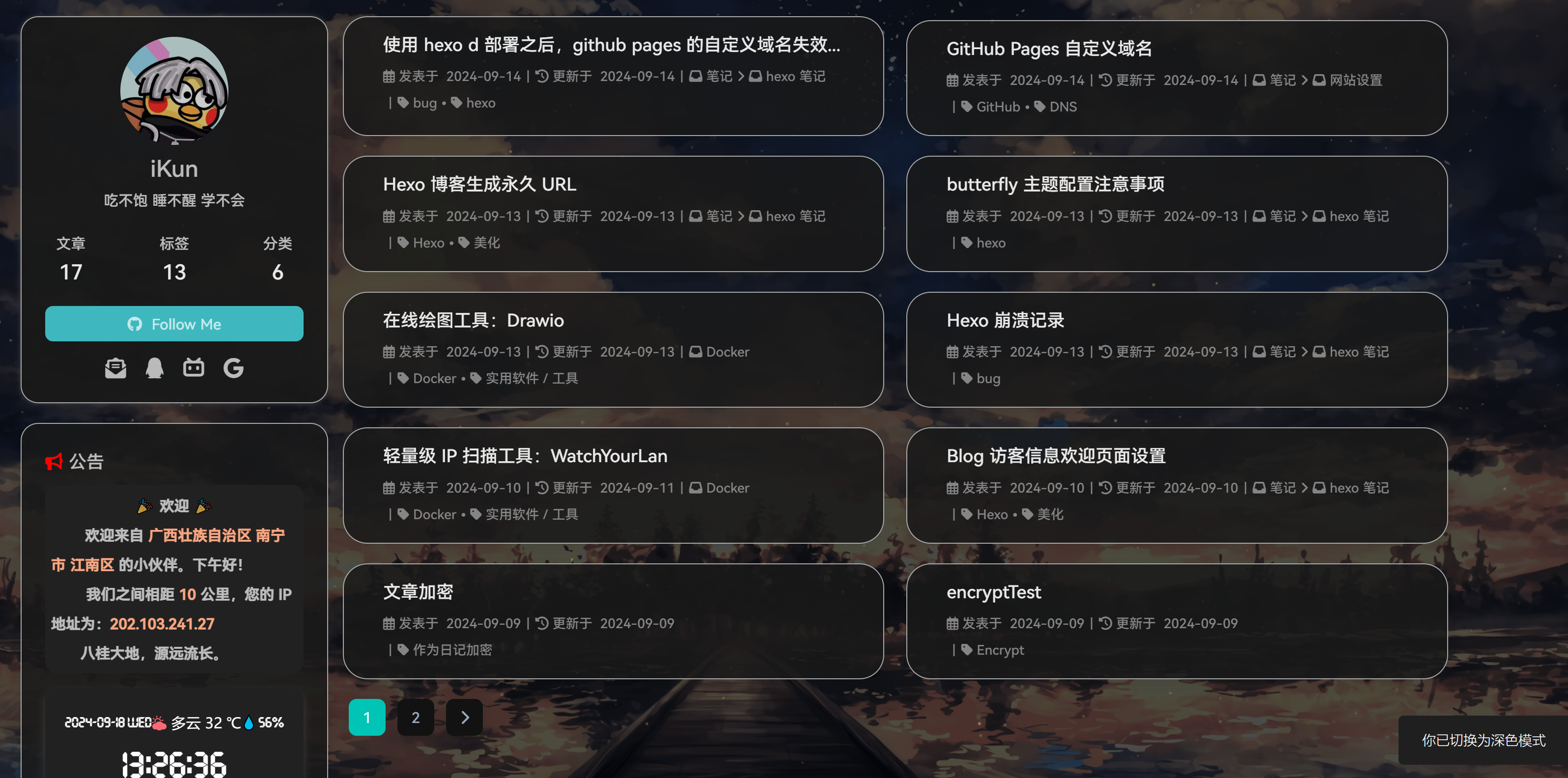
效果:通过css样式调节各个页面透明度、模糊度(亚克力效果)、圆角、边框样式等,看起来会更加舒适。
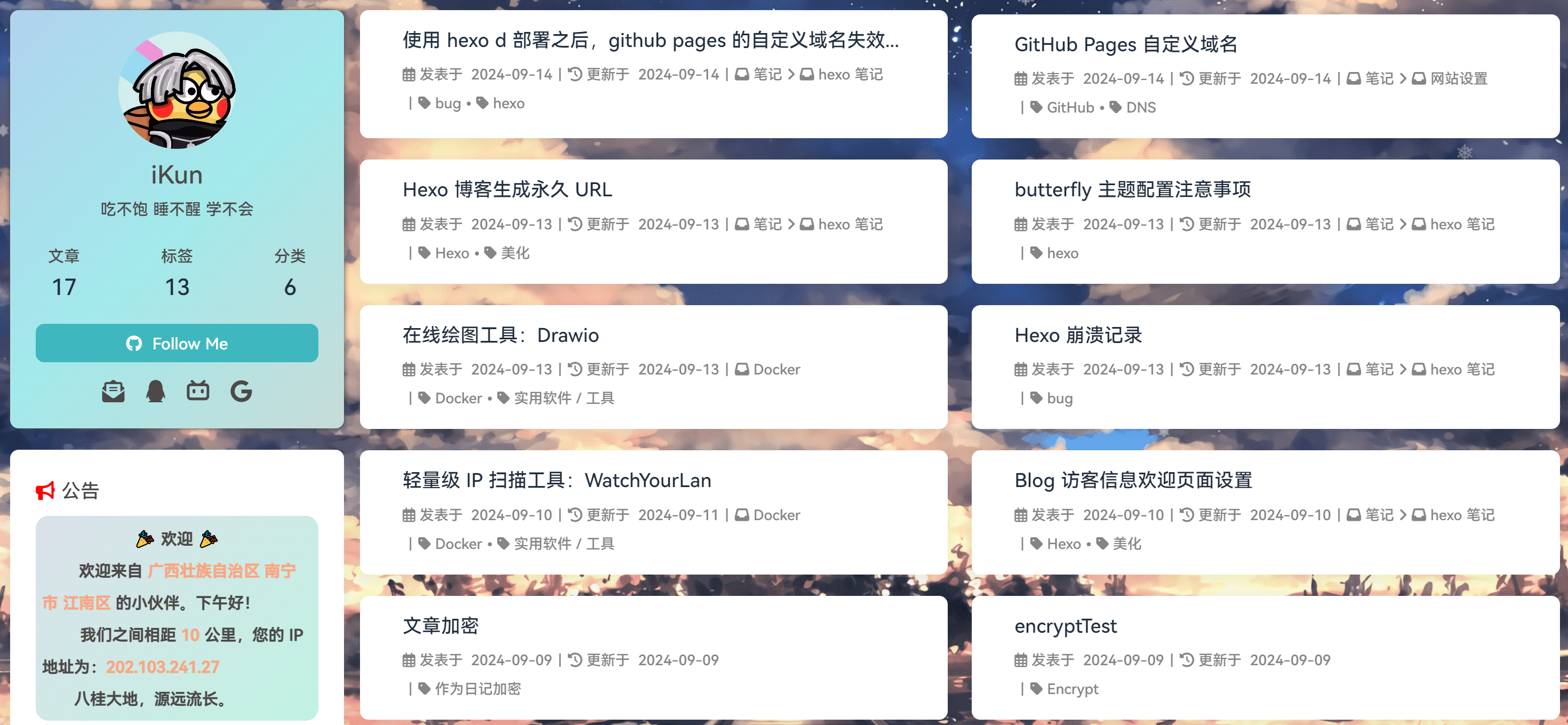
未调节前

调节后-白天效果

调节后-夜间效果

  1. 复制一下代码到自定义的G:\hexo\source\css\custom.css文件
1
2
3
4
5
6
7
8
9
10
11
12
13
14
15
16
17
18
19
20
21
22
23
24
25
26
27
28
29
30
31
32
33
34
35
36
37
38
39
40
41
42
43
44
45
46
47
48
49
50
51
52
53
54
55
56
57
58
59
60
61
62
63
64
65
66
67
68
69
70
71
72
73
74
75
76
77
78
:root {
--trans-light: rgba(255, 255, 255, 0.88);
--trans-dark: rgba(25, 25, 25, 0.88);
--border-style: 1px solid rgb(169, 169, 169);
--backdrop-filter: blur(5px) saturate(150%);
}

/* 首页文章卡片 */
#recent-posts > .recent-post-item {
background: var(--trans-light);
backdrop-filter: var(--backdrop-filter);
border-radius: 25px;
border: var(--border-style);
}

/* 首页侧栏卡片 */
#aside-content .card-widget {
background: var(--trans-light);
backdrop-filter: var(--backdrop-filter);
border-radius: 18px;
border: var(--border-style);
}

/* 文章页、归档页、普通页面 */
div#post,
div#page,
div#archive {
background: var(--trans-light);
backdrop-filter: var(--backdrop-filter);
border: var(--border-style);
border-radius: 20px;
}

/* 导航栏 */
#page-header.nav-fixed #nav {
background: rgba(255, 255, 255, 0.75);
backdrop-filter: var(--backdrop-filter);
}

[data-theme="dark"] #page-header.nav-fixed #nav {
background: rgba(0, 0, 0, 0.7) !important;
}

/* 夜间模式遮罩 */
[data-theme="dark"] #recent-posts > .recent-post-item,
[data-theme="dark"] #aside-content .card-widget,
[data-theme="dark"] div#post,
[data-theme="dark"] div#archive,
[data-theme="dark"] div#page {
background: var(--trans-dark);
}


/* 夜间模式页脚页头遮罩透明 */
[data-theme="dark"] #footer::before {
background: transparent !important;
}
[data-theme="dark"] #page-header::before {
background: transparent !important;
}

/* 阅读模式 */
.read-mode #aside-content .card-widget {
background: rgba(158, 204, 171, 0.5) !important;
}
.read-mode div#post {
background: rgba(158, 204, 171, 0.5) !important;
}

/* 夜间模式下的阅读模式 */
[data-theme="dark"] .read-mode #aside-content .card-widget {
background: rgba(25, 25, 25, 0.9) !important;
color: #ffffff;
}
[data-theme="dark"] .read-mode div#post {
background: rgba(25, 25, 25, 0.9) !important;
color: #ffffff;
}
  1. 把上面代码的:root设置移动到G:\hexo\source\css\custom.css最前面,因为下面的样式要引用它,所在放在最前
1
2
3
4
5
6
:root {
--trans-light: rgba(255, 255, 255, 0.88);
--trans-dark: rgba(25, 25, 25, 0.88);
--border-style: 1px solid rgb(169, 169, 169);
--backdrop-filter: blur(5px) saturate(150%);
}

参数说明

  • --trans-light:白天模式带透明度的背景色,如rgba(255, 255, 255, 0.88)底色是纯白色,其中0.88就透明度,在0-1之间调节,值越大越不透明;
  • --trans-dark: 夜间模式带透明度的背景色,如rgba(25, 25, 25, 0.88)底色是柔和黑色,其中0.88就透明度,在0-1之间调节,值越大越不透明;
  • --border-style: 边框样式,1px solid rgb(169, 169, 169)指宽度为1px的灰色实体边框;
  • --backdrop-filter: 背景过滤器,如blur(5px) saturate(150%)表示饱和度为150%的、高斯模糊半径为5px的过滤器,这是亚克力效果的一种实现方法; 消耗性能较高,未开启

版权渐变色美化

效果:修改文章版权卡片的样式,添加渐变色和文字排布信息

版权渐变色样式

  1. 打开G:\hexo\themes\butterfly\layout\includes\post\post-copyright.pug,复制如下代码替换原文件(我把上面的源代码注释掉了,没有删掉)
1
2
3
4
5
6
7
8
9
10
11
12
13
14
15
16
17
18
19
20
21
22
23
24
25
26
27
28
29
30
31
32
if theme.post_copyright.enable && page.copyright !== false
- let author = page.copyright_author ? page.copyright_author : config.author
- let url = page.copyright_url ? page.copyright_url : page.permalink
- let license = page.license ? page.license : theme.post_copyright.license
- let license_url = page.license_url ? page.license_url : theme.post_copyright.license_url
.post-copyright
.post-copyright__title
span.post-copyright-info
h #[=page.title]
.post-copyright__type
span.post-copyright-info
a(href=url_for(url))= theme.post_copyright.decode ? decodeURI(url) : url
.post-copyright-m
.post-copyright-m-info
.post-copyright-a
h 作者
.post-copyright-cc-info
h=author
.post-copyright-c
h 发布于
.post-copyright-cc-info
h=date(page.date, config.date_format)
.post-copyright-u
h 更新于
.post-copyright-cc-info
h=date(page.updated, config.date_format)
.post-copyright-c
h 许可协议
.post-copyright-cc-info
a.icon(rel='noopener' target='_blank' title='Creative Commons' href='https://creativecommons.org/')
i.fab.fa-creative-commons
a(rel='noopener' target='_blank' title=license href=url_for(license_url))=license
  1. 打开G:\hexo\themes\butterfly\source\css\_layout\post.styl,用以下代码覆盖掉源代码。这个文件就是自己调节样式的。其中,184行是白天模式的背景色;253行是夜间模式的发光光圈颜色,也可以自行替换成自己喜欢的颜色:
1
2
3
4
5
6
7
8
9
10
11
12
13
14
15
16
17
18
19
20
21
22
23
24
25
26
27
28
29
30
31
32
33
34
35
36
37
38
39
40
41
42
43
44
45
46
47
48
49
50
51
52
53
54
55
56
57
58
59
60
61
62
63
64
65
66
67
68
69
70
71
72
73
74
75
76
77
78
79
80
81
82
83
84
85
86
87
88
89
90
91
92
93
94
95
96
97
98
99
100
101
102
103
104
105
106
107
108
109
110
111
112
113
114
115
116
117
118
119
120
121
122
123
124
125
126
127
128
129
130
131
132
133
134
135
136
137
138
139
140
141
142
143
144
145
146
147
148
149
150
151
152
153
154
155
156
157
158
159
160
161
162
163
164
165
166
167
168
169
170
171
172
173
174
175
176
177
178
179
180
181
182
183
184
185
186
187
188
189
190
191
192
193
194
195
196
197
198
199
200
201
202
203
204
205
206
207
208
209
210
211
212
213
214
215
216
217
218
219
220
221
222
223
224
225
226
227
228
229
230
231
232
233
234
235
236
237
238
239
240
241
242
243
244
245
246
247
248
249
250
251
252
253
254
255
256
257
258
259
260
261
262
263
264
beautify()
headStyle(fontsize)
padding-left: unit(fontsize + 12, 'px')

&:before
margin-left: unit((-(fontsize + 6)), 'px')
font-size: unit(fontsize, 'px')

&:hover
padding-left: unit(fontsize + 18, 'px')

h1,
h2,
h3,
h4,
h5,
h6
transition: all .2s ease-out

&:before
position: absolute
top: calc(50% - 7px)
color: $title-prefix-icon-color
content: $title-prefix-icon
line-height: 1
transition: all .2s ease-out
@extend .fontawesomeIcon

&:hover
&:before
color: $light-blue

h1
headStyle(20)

h2
headStyle(18)

h3
headStyle(16)

h4
headStyle(14)

h5
headStyle(12)

h6
headStyle(12)

ol,
ul
p
margin: 0 0 8px

li
&::marker
color: $light-blue
font-weight: 600
font-size: 1.05em

&:hover
&::marker
color: var(--pseudo-hover)

ul > li
list-style-type: circle

#article-container
word-wrap: break-word
overflow-wrap: break-word

a
color: $theme-link-color

&:hover
text-decoration: underline

img
display: block
margin: 0 auto 20px
max-width: 100%
transition: filter 375ms ease-in .2s

p
margin: 0 0 16px

iframe
margin: 0 0 20px

if hexo-config('anchor')
a.headerlink
&:after
@extend .fontawesomeIcon
float: right
color: var(--headline-presudo)
content: '\f0c1'
font-size: .95em
opacity: 0
transition: all .3s

&:hover
&:after
color: var(--pseudo-hover)

h1,
h2,
h3,
h4,
h5,
h6
&:hover
a.headerlink
&:after
opacity: 1

ol,
ul
ol,
ul
padding-left: 20px

li
margin: 4px 0

p
margin: 0 0 8px

if hexo-config('beautify.enable')
if hexo-config('beautify.field') == 'site'
beautify()
else if hexo-config('beautify.field') == 'post'
&.post-content
beautify()

> :last-child
margin-bottom: 0 !important

#post
.tag_share
.post-meta
&__tag-list
display: inline-block

&__tags
display: inline-block
margin: 8px 8px 8px 0
padding: 0 12px
width: fit-content
border: 1px solid $light-blue
border-radius: 12px
color: $light-blue
font-size: .85em
transition: all .2s ease-in-out

&:hover
background: $light-blue
color: var(--white)

.post_share
display: inline-block
float: right
margin: 8px 0
width: fit-content

.social-share
font-size: .85em

.social-share-icon
margin: 0 4px
width: w = 1.85em
height: w
font-size: 1.2em
line-height: w

.post-copyright
position: relative
margin: 40px 0 10px
padding: 10px 16px
border: 1px solid var(--light-grey)
transition: box-shadow .3s ease-in-out
overflow: hidden
border-radius: 12px!important
background: linear-gradient(45deg, #f6d8f5, #c2f1f0, #f0debf);

&:before
background var(--heo-post-blockquote-bg)
position absolute
right -26px
top -120px
content '\f25e'
font-size 200px
font-family 'Font Awesome 5 Brands'
opacity .2

&:hover
box-shadow: 0 0 8px 0 rgba(232, 237, 250, .6), 0 2px 4px 0 rgba(232, 237, 250, .5)

.post-copyright
&-meta
color: $light-blue
font-weight: bold

&-info
padding-left: 6px

a
text-decoration: none
word-break: break-word

&:hover
text-decoration: none

.post-copyright-cc-info
color: $theme-color;

.post-outdate-notice
position: relative
margin: 0 0 20px
padding: .5em 1.2em
border-radius: 3px
background-color: $noticeOutdate-bg
color: $noticeOutdate-color

if hexo-config('noticeOutdate.style') == 'flat'
padding: .5em 1em .5em 2.6em
border-left: 5px solid $noticeOutdate-border

&:before
@extend .fontawesomeIcon
position: absolute
top: 50%
left: .9em
color: $noticeOutdate-border
content: '\f071'
transform: translateY(-50%)

.ads-wrap
margin: 40px 0
.post-copyright-m-info
.post-copyright-a,
.post-copyright-c,
.post-copyright-u
display inline-block
width fit-content
padding 2px 5px
[data-theme="dark"]
#post
.post-copyright
background #07080a
text-shadow #bfbeb8 0 0 2px
border 1px solid rgb(19 18 18 / 35%)
box-shadow 0 0 5px var(--theme-color)
animation flashlight 1s linear infinite alternate
.post-copyright-info
color #e0e0e4

#post
.post-copyright__title
font-size 22px
.post-copyright__notice
font-size 15px
.post-copyright
box-shadow 2px 2px 5px

网页底部运行时间

效果:添加一个网站运行时间

网站运行时间

  1. 新建source\css\bottom_runtime.css,写入如下内容
1
2
3
4
5
6
7
8
9
10
11
12
13
14
15
16
div#runtime {
width: fit-content;
text-align: center;
margin: 0 auto;
color: #f5f4f4;
padding: 0 10px;
border-radius: 10px;
background-color: rgba(0, 0, 0, 0.7);
}

[data-theme="dark"] div#runtime {
color: #28b4c8;
box-shadow: 0 0 5px rgba(28, 69, 218, 0.71);
text-align: center;
margin: 0 auto;
}
  1. 新建source\js\bottom_runtime.js,写入如下内容
1
2
3
4
5
6
7
8
9
10
11
12
13
14
15
16
17
18
19
20
21
22
23
24
25
26
27
28
29
30
31
32
33
34
35
36
37
38
39
setInterval(() => {
let create_time = Math.round(new Date("2024/9/5 00:00:00").getTime() / 1000); // 在此行修改建站时间
let timestamp = Math.round(new Date().getTime() / 1000);
let second = timestamp - create_time;
let time = new Array(0, 0, 0, 0, 0);

var nol = function (h) {
return h > 9 ? h : "0" + h;
};

if (second >= 365 * 24 * 3600) {
time[0] = parseInt(second / (365 * 24 * 3600));
second %= 365 * 24 * 3600;
}
if (second >= 24 * 3600) {
time[1] = parseInt(second / (24 * 3600));
second %= 24 * 3600;
}
if (second >= 3600) {
time[2] = nol(parseInt(second / 3600));
second %= 3600;
}
if (second >= 60) {
time[3] = nol(parseInt(second / 60));
second %= 60;
}
if (second >= 0) {
time[4] = nol(second);
}

let currentTimeHtml = "本站已正常运行:";
if (time[0] != 0) {
currentTimeHtml += time[0] + "年 ";
}
currentTimeHtml +=
time[1] + "天 " + time[2] + "时 " + time[3] + "分 " + time[4] + "秒";
document.getElementById("runtime").innerHTML = currentTimeHtml;
}, 1000);

  1. 在主题配置文件_config.butterfly.ymlfooter:修改内容
1
2
3
4
5
6
7
footer:
owner:
enable: true
since: 2023
- # custom_text: 多读书 多看报 少吃零食 多睡觉
+ custom_text: <div id="runtime"></div>
copyright: false # Copyright of theme and framework
  1. 在主题配置文件_config.butterfly.yml引入css和js文件
1
2
3
4
5
inject:
head:
+ - <link rel="stylesheet" href="/css/bottom_runtime.css">
bottom:
+ - <script async src="/js/bottom_runtime.js"></script> # 运行时间

博客标签魔改

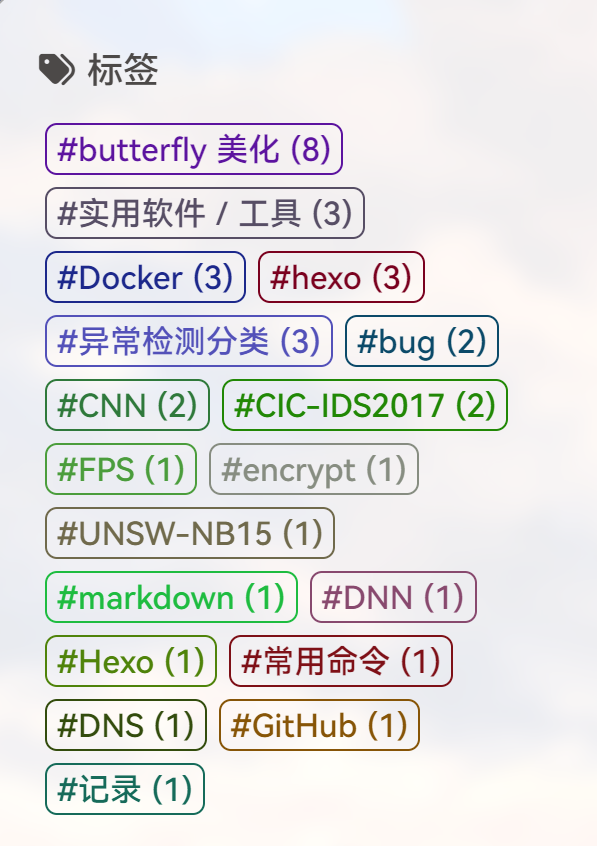
效果:

  • 让字体显示统一大小
  • 让标签让大小顺序排序

修改前

修改后

  1. 打开themes\butterfly\scripts\helpers\page.js,注释掉以下代码
1
2
3
4
5
6
7
8
9
10
11
12
13
14
15
16
17
18
19
20
21
22
23
24
25
26
27
28
29
30
31
32
33
34
35
36
37
// hexo.extend.helper.register('cloudTags', function (options = {}) {
// const env = this
// let { source, minfontsize, maxfontsize, limit, unit, orderby, order } = options
// unit = unit || 'px'

// let result = ''
// if (limit > 0) {
// source = source.limit(limit)
// }

// const sizes = []
// source.sort('length').forEach(tag => {
// const { length } = tag
// if (sizes.includes(length)) return
// sizes.push(length)
// })

// const length = sizes.length - 1
// source.sort(orderby, order).forEach(tag => {
// const ratio = length ? sizes.indexOf(tag.length) / length : 0;
// const size = minfontsize + (maxfontsize - minfontsize) * ratio;
// let style = `font-size: ${parseFloat(size.toFixed(2))}${unit};`;
// const color =
// "rgb(" +
// Math.floor(Math.random() * 201) +
// ", " +
// Math.floor(Math.random() * 201) +
// ", " +
// Math.floor(Math.random() * 201) +
// ")"; // 0,0,0 -> 200,200,200
// style += ` color: ${color}`;
// // result += `<a href="${env.url_for(tag.path)}" style="${style}">${tag.name}</a>`
// // 我修改的,原样式是上面那行代码
// result += `<a href="${env.url_for(tag.path)}" style="${style}">#${tag.name} ${tag.length}</a>`;
// })
// return result
// })
  1. 在注释代码下面添加如下代码
1
2
3
4
5
6
7
8
9
10
11
12
13
14
15
16
17
18
19
20
21
22
23
24
25
26
27
hexo.extend.helper.register("cloudTags", function (options = {}) {
const env = this;
let source = options.source;
const limit = options.limit;

// 从小到大排序然后再翻转,即从大到小排序
source = source.sort("length").reverse();
let result = "";
if (limit > 0) source = source.limit(limit);

source.forEach((tag) => {
const color =
"rgb(" +
Math.floor(Math.random() * 201) +
", " +
Math.floor(Math.random() * 201) +
", " +
Math.floor(Math.random() * 201) +
")"; // 0,0,0 -> 200,200,200
result += `<a href="${env.url_for(
tag.path
)}" style="color: ${color}; font-size: 16px !important;">#${tag.name} (${
tag.length
})</a>`; // 使用固定字体大小
});
return result;
});
  1. G:\hexo\source\css\custom.css文件最下面写入如下代码
1
2
3
4
5
6
7
8
9
10
11
12
13
14
15
16
17
18
/* 标签 */
#aside-content .card-tag-cloud a {
border: 1px solid;
line-height: 1.5;
border-radius: 6px;
margin: 3px;
padding: 0 5px;
}

.tag-cloud-list a {
border: 1px solid;
line-height: 1.5;
border-radius: 6px;
padding: 5px 15px;
font-size: 1.2rem;
margin: 5px;
}